

Some things were easier than I thought. And a few surprises changed how I think about running AI agents entirely.
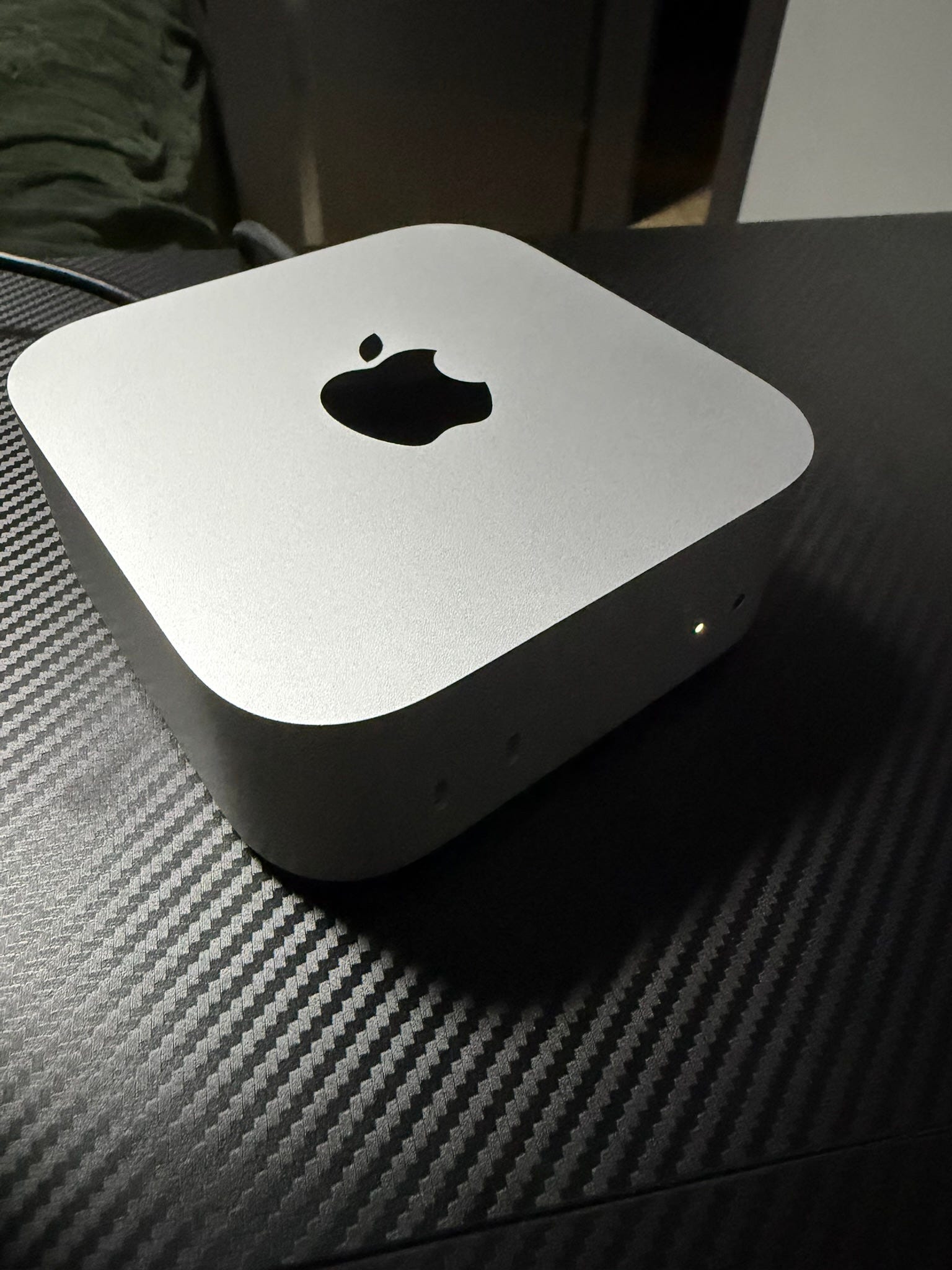
I bought a Mac Mini. Not because of hype. Not because someone on Twitter said it was cool. I bought it because after months of running an AI agent on my personal laptop, I hit a wall that kept getting higher.
The wall was simple: every time I took my MacBook somewhere, my agent stopped working.
I had built workarounds. Scripts that prevented sleep. Auto-wake systems that restarted everything when I opened the lid again. It worked. Until it didn’t. Because the fundamental problem was that my personal computer and my AI agent’s computer were the same device. And that creates friction in ways you don’t expect until you live with it for months.
So I started thinking about a dedicated machine. Not “wouldn’t it be nice” thinking. Practical “what are my options” thinking.
Why Mac Mini (And What I Considered Instead)
I looked at everything. Seriously.
Raspberry Pi. Cheap. Could probably run a Claude Code-based agent. But administrating it would be rough. ARM Linux, limited RAM, no macOS ecosystem. Every tool I’d built relied on AppleScript, macOS permissions, iMessage, Calendar. Starting over on Linux felt like rebuilding from scratch for no good reason.
Mac Studio. The dream machine. Enough power to run serious local LLMs. Real independence from API keys and subscriptions. But expensive. And here’s the thing I kept coming back to: local models are getting better fast. The hardware you need to run them is getting smaller every few months. I ran Qwen 3.5 on my M1 Pro MacBook and it worked. Not great for daily driving, but it worked. In two years, the Mac Studio I’d buy today would be overkill for what local models will need. The bet I’m making is that models get more efficient faster than hardware gets cheaper.
Custom PC / mini server. Same Linux problem as Raspberry Pi, times ten. I’m deep in the Apple ecosystem. My agent uses iMessage, Apple Mail, Calendar, Reminders, the Passwords app. Rebuilding all that on Linux would take weeks and produce something worse.
Mac Mini was the answer. Base model. Cheapest option. M4 chip, which is genuinely more than enough for an AI agent that mostly coordinates cloud APIs and runs local scripts. Cost-effective, same ecosystem, small enough to sit on a shelf and forget about.
I walked into a store on a Friday and started migrating the same evening.
The Differences
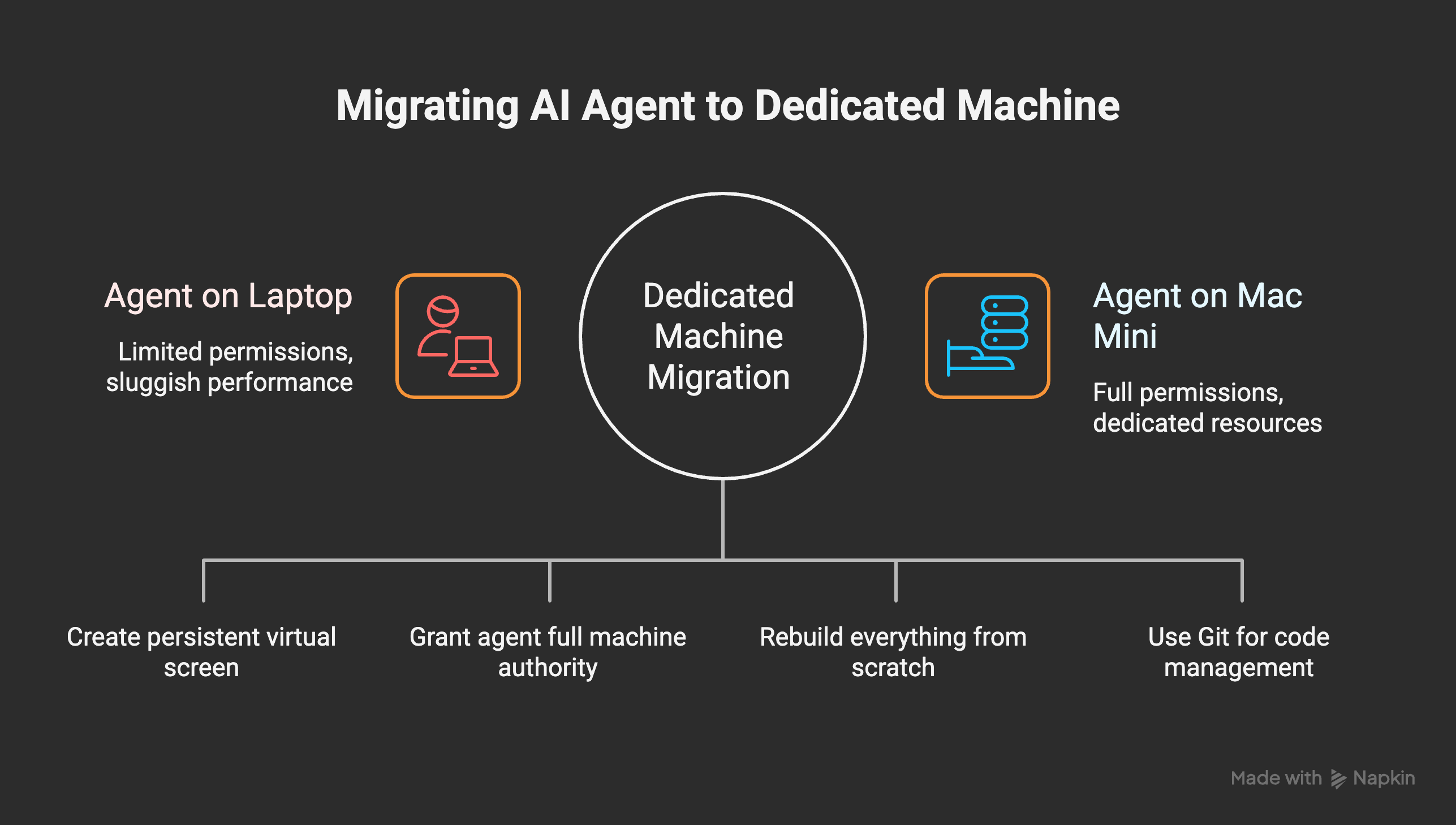
Before the migration story, you need to understand what actually changes when your agent moves from your daily-driver laptop to a dedicated headless machine. These aren’t obvious until you’re in the middle of it.
1. Headless means no display. That breaks more than you think.
When your AI agent runs on your laptop, it has a screen. Tools like Peekaboo (which controls macOS UI elements) just work. Screenshots just work. Anything that needs to “see” what’s on screen just works.
Mac Mini with no monitor attached? None of that works.
I didn’t fully appreciate this until things started failing silently. screencapture returned empty files. UI automation scripts ran but couldn’t find any windows. My agent was trying to interact with a desktop that technically didn’t exist.
The fix: BetterDisplay. This app creates a persistent virtual display that macOS treats as real. I set up a 5K virtual screen called “WizDisplay” that auto-starts when the Mac Mini boots. It has an HTTP API so my health monitor can check if it’s still alive and reconnect it automatically if BetterDisplay crashes. After this, screencapture, Peekaboo, and all UI automation worked perfectly.
Why not Apple’s built-in CGVirtualDisplay API? I tried. It requires special entitlements that only signed apps can use. A standalone Python or Swift script can’t create a virtual display. BetterDisplay handles those entitlements as a signed app. This took me an entire day to figure out.
2. Full machine authority changes the game.
On my MacBook, my agent had limited permissions. I controlled which files it could access, which system settings it could change. Made sense. My personal data was there. Work documents. Passwords. Everything.
On a dedicated Mac Mini with a fresh macOS install and nothing personal on it? Different story.
I gave Wiz full root access. Passwordless sudo. Full Disk Access. Screen Recording. Accessibility permissions. Every Automation grant (Messages, Mail, Calendar, Contacts, Finder, Safari, Reminders, Notes, Photos). All of it.
This sounds reckless. It’s not. There is nothing on this machine that I’m afraid of losing. It’s a clean environment built specifically for the agent. If something goes wrong, I wipe it and start over. The real data lives in Git and iCloud.
The practical difference is huge. My agent can now install software, modify system preferences, manage LaunchAgents, fix permission issues, and restart services without ever asking me. The self-improvement architecture I built works much better when the agent can actually act on what it learns without hitting permission walls.
A word of caution: This only makes sense because it’s a dedicated, isolated machine. I would never do this on a computer with my personal data, work accounts, or anything I can’t rebuild from a backup. The whole point of a separate machine is that you can be generous with permissions precisely because the blast radius is contained.
3. Clean slate means you rebuild everything.
I installed a fresh macOS. No migration from my MacBook. New user account just for the agent. Completely clean.
This means: no apps, no calendars, no messages, no mail, no documents, no browser sessions, no saved passwords. Everything my agent could access on my MacBook through proximity and shared filesystem? Gone.
You have to think about this like onboarding a new team member. If my agent needs access to my calendar, I need to share it. (I shared my iCloud calendars with the agent’s Apple ID.) If it needs email, I need to log in. (I set up Apple Mail with my Macmillan work account.) If it needs files, I need a way to exchange them.
This is actually healthy. It forces you to be intentional about what your agent has access to, rather than the lazy “it can see everything because we share a filesystem” approach.
4. Your laptop stops being a server.
My M1 Pro MacBook was fine for most things. But running AI agents alongside my actual work? It got sluggish. Browser tabs competing with background automation. Local model experiments eating RAM that I needed for Xcode or Figma. The agent occasionally opening apps or running scripts while I was in the middle of something else.
Now my MacBook is just my MacBook again. Fast, clean, mine. All 25 LaunchAgents that used to run in the background? Moved to Mac Mini. Every cron job, every watcher, every automation. My battery lasts longer. My fans are quieter. And my agent has a dedicated M4 chip that draws about 15 watts idle. That’s roughly $15/year in electricity for a machine that runs 24/7.
5. Development needs Git discipline.
When everything lived on one machine, there was no friction. Edit a file, run it, done. Now I have code on two machines. My MacBook (where I sometimes write code) and the Mac Mini (where it runs).
GitHub became essential, not optional. I created a separate branch (wiz-mini) for the Mac Mini paths, and the workflow is: I push to main from MacBook, Mac Mini fetches and rebases. Not complex, but you have to be disciplined about it. If you’re sloppy with Git, you’ll end up with divergent states and debugging sessions that eat your weekend.
Before we jump into migration part - if you are my paid subscriber and thinking about migration of you AI Agent - I prepared AI Agent Migration Pack. It is ready to use solution and you can avoid my mistakes!
The Migration Itself
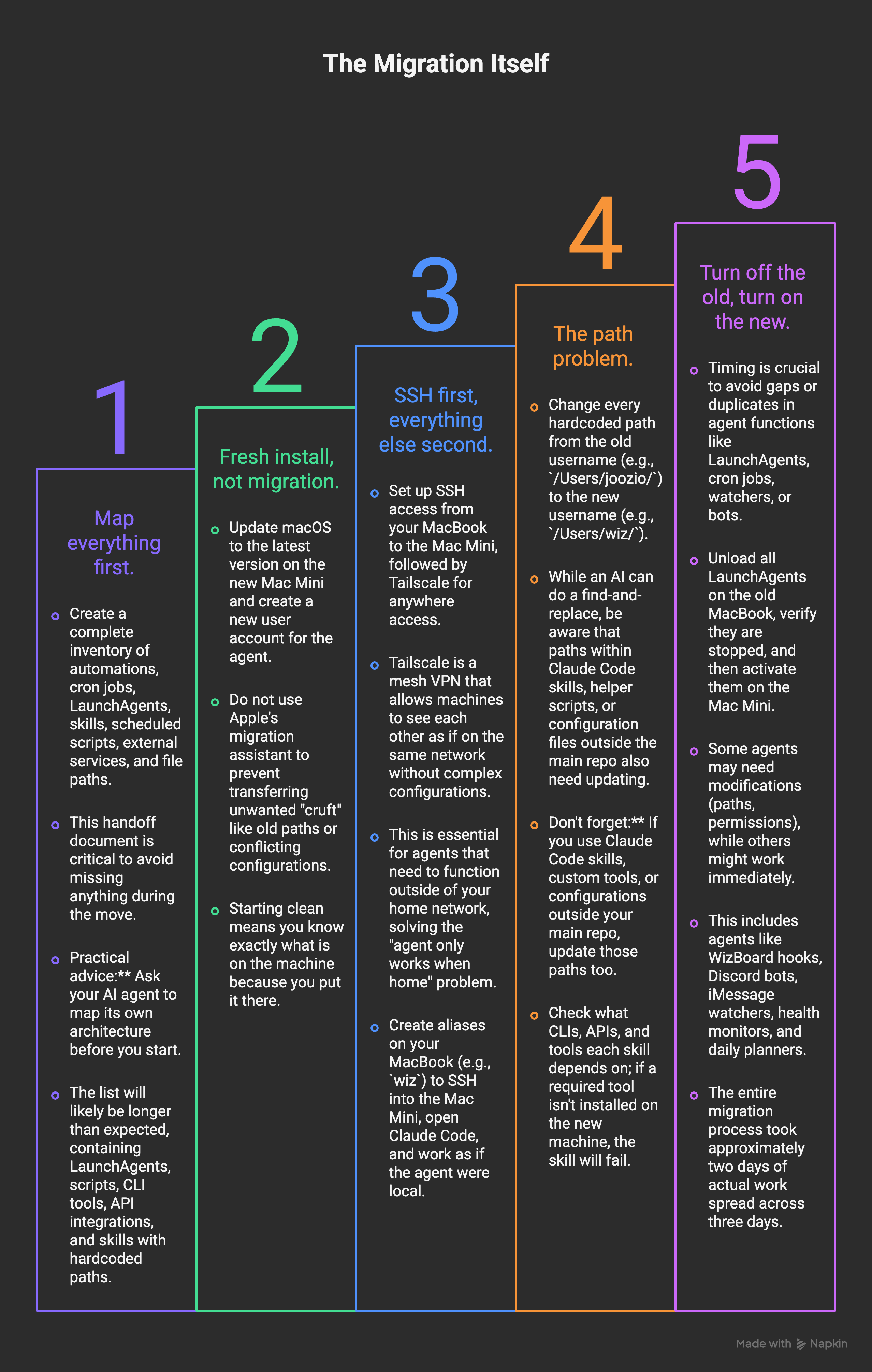
Step 1: Map everything first.
Before I touched the Mac Mini, I asked Wiz to create a complete inventory of itself. Every automation. Every cron job. Every LaunchAgent. Every skill. Every script that runs on a schedule. Every external service it connects to. Every file path it depends on.
This handoff document was critical. Without it, you’re guessing what to migrate, and you will forget something.
Practical advice: Ask your AI agent to map its own architecture before you start. It knows what it runs, what it depends on, and what will break if you move it. The list will be longer than you expect. Mine had 25 LaunchAgents, dozens of Python scripts, CLI tools, API integrations, and skills with hardcoded paths. Getting this list first saved me hours of debugging later.
Step 2: Fresh install, not migration.
I updated macOS to the latest version on the Mac Mini. Created a new user account for the agent. Did not use Apple’s migration assistant. Clean slate.
Some people will disagree with this. Migration assistant would have carried over apps, settings, maybe even some of the automation. But it also would have carried over cruft. Old paths. Conflicting configurations. Half-broken experiments I’d forgotten about. Starting clean meant I knew exactly what was on the machine because I put it there.
Step 3: SSH first, everything else second.
The first thing I set up was SSH access from my MacBook to the Mac Mini. Then Tailscale, so I could reach it from anywhere, not just my home network.
Tailscale deserves its own paragraph. It’s a mesh VPN built on WireGuard. You install it on both machines, log in with the same account, and they can see each other as if they’re on the same local network. No port forwarding. No dynamic DNS. No config files. It just works. Free for personal use. This was essential because I travel, and “my agent only works when I’m home” is exactly the problem I was solving.
I also created aliases on my MacBook: wiz SSHes to Mac Mini (tries Tailscale first, falls back to local network), opens Claude Code, and I’m working as if the agent were local. wizb is my backup that runs Claude Code locally on MacBook if I need it. Seamless.
Step 4: The path problem.
My MacBook username was joozio. My Mac Mini username is wiz. Every hardcoded path in every script had to change from /Users/joozio/ to /Users/wiz/.
Sounds simple. An AI agent can do a find-and-replace in minutes. And it did. But here’s what I missed: the skills I’d built for Claude Code also had hardcoded paths. SKILL.md files, helper scripts inside skill directories, configuration files that referenced absolute paths. These weren’t in the main repo. They lived in ~/.claude/skills/. My agent tried to run, hit wrong paths in skills, and started failing in ways that weren’t obvious because the agent was trying to work around the errors before reporting them.
Don’t forget: If you use Claude Code skills, custom tools, or any configuration outside your main repo, those paths need updating too. And check what CLIs, APIs, and tools each skill depends on. If a skill references playwright and it’s not installed on the new machine, it fails. Obvious in hindsight. Not obvious at 11 PM on a Friday.
Step 5: Turn off the old, turn on the new.
This is where timing matters. My old MacBook was running 25 LaunchAgents. Cron jobs. Watchers. Discord bots. All of it needed to stop on one machine and start on the other without gaps or duplicates.
I unloaded all LaunchAgents on the MacBook, verified they were stopped, then activated them on the Mac Mini. Some needed modifications (paths, permissions). Some just worked. The WizBoard hooks, the Discord bot, the iMessage watcher, the health monitor, the daily planner. One by one.
The whole process took about two days of actual work spread across three days.
The Virtual Display Problem (This Deserves Its Own Section)
This was the single most frustrating issue of the entire migration.
Day one, everything seemed fine. Agent was running, responding, executing tasks. Then I noticed: screenshots were blank. Peekaboo captures returned nothing. UI automation silently failed.
The problem: macOS on a headless Mac Mini doesn’t initialize a graphics context. There’s no display, so the system decides there’s nothing to render. Reasonable from Apple’s perspective. Catastrophic for an AI agent that sometimes needs to see what’s on screen.
My first attempt: write a Swift script using Apple’s CGVirtualDisplay API to create a software display. Compiled fine. Ran fine. Didn’t work. The API requires special entitlements that only properly signed applications can use. A standalone script, even with the correct code, just silently creates nothing.
My second attempt: BetterDisplay. An app that handles virtual display creation as a signed, entitled macOS application. Installed via Homebrew. Created a virtual screen. Connected it via HTTP API. Immediately, everything worked.
I then built a health monitor that checks the display status every few minutes. If BetterDisplay crashes or the virtual screen disconnects, it auto-restarts and reconnects. Because when your agent depends on a virtual display and that display goes away at 3 AM, nobody’s awake to fix it.
If you’re setting up a headless Mac for any kind of UI automation or screen interaction, BetterDisplay is not optional. It’s essential. Save yourself the day I lost figuring this out.
Communication Channels: iMessage Changes Everything
Before the Mac Mini, I had three ways to talk to my agent: CLI (SSH), Discord DMs, and email. These worked. Discord was the primary channel for quick back-and-forth. WizBoard was the central hub for tasks and automations.
The Mac Mini added something new: iMessage.
Because the Mac Mini has its own Apple ID, it has its own iMessage. I added it as a contact on my iPhone. Now I can text my AI agent like I’d text a person.
Setting this up was harder than it sounds. The first few hours were constant failures. AppleScript handles for sending messages are straightforward, but building a reliable watcher that picks up incoming messages, queues them properly, handles batched messages (I sometimes send five texts in a row), avoids duplicate processing, and gracefully recovers from crashes? That took serious work.
The current system: a Python watcher monitors for new messages. When I text Wiz, it queues the message, spawns a Claude Code session with the right context, processes my request, and replies via AppleScript. If I send multiple messages quickly, it batches them into a single request.
One limitation I hit immediately: reactions. On Discord, my agent can react to messages with emojis, show typing indicators, update status messages. The Discord API supports all of this natively. iMessage doesn’t. Tapbacks (reactions) require UI automation, which on a headless Mac means going through the virtual display and Peekaboo. That burns tokens and is fragile. I opted for text-based acknowledgments instead. Not as elegant, but reliable.
File sharing solution: Since the Mac Mini has its own iCloud account, I created a shared folder called “Wiz Shared” between my Apple ID and the agent’s. Everything the agent generates (PDFs, images, exports) goes there. I can access it from my iPhone, MacBook, anywhere. Simple, works offline (syncs when online), and I don’t need to think about it. Better than Discord file attachments for larger files.
The Password Problem
This one is important. Your agent needs credentials for services. APIs, websites, tools. On your laptop, maybe you had a file with API keys, or your agent could read from environment variables you’d set up.
On a new machine with a new user, nothing carries over.
I use Apple’s built-in Passwords app. For agent credentials, I created a shared password group between my Apple ID and the agent’s Apple ID. I share specific passwords, not everything. The agent can look up credentials when it needs to log into something.
I’ve also kept a secrets directory in the repo (global/secrets/) for API keys and tokens that the agent needs programmatically. These are gitignored and manually placed.
Please don’t do this: Notes files with passwords in plain text. I know people do this. It’s one leaked backup away from disaster. Use encrypted password sharing. Apple’s Passwords app, 1Password shared vaults, Bitwarden, whatever. Just not plaintext files.
Two-factor authentication adds another layer. Some services needed me to approve the Mac Mini as a trusted device. Some needed me to log in via Screen Sharing (VNC) the first time. Budget an hour or two for this during migration. It’s tedious but necessary.
The OpenClaw Comparison (Honest Take After 3 Days)
When I set up the Mac Mini, I also installed OpenClaw. I’d used it briefly back in December/January before committing to building Wiz from scratch. Now seemed like a good time to compare.
My assumption going in: OpenClaw would be significantly ahead. It’s a massive open-source project with hundreds of contributors, community-driven development, polished onboarding. My custom agent is maintained by one person (me, with AI help). Surely it would be embarrassingly behind.
Three days of running both side by side. Here’s the honest assessment.
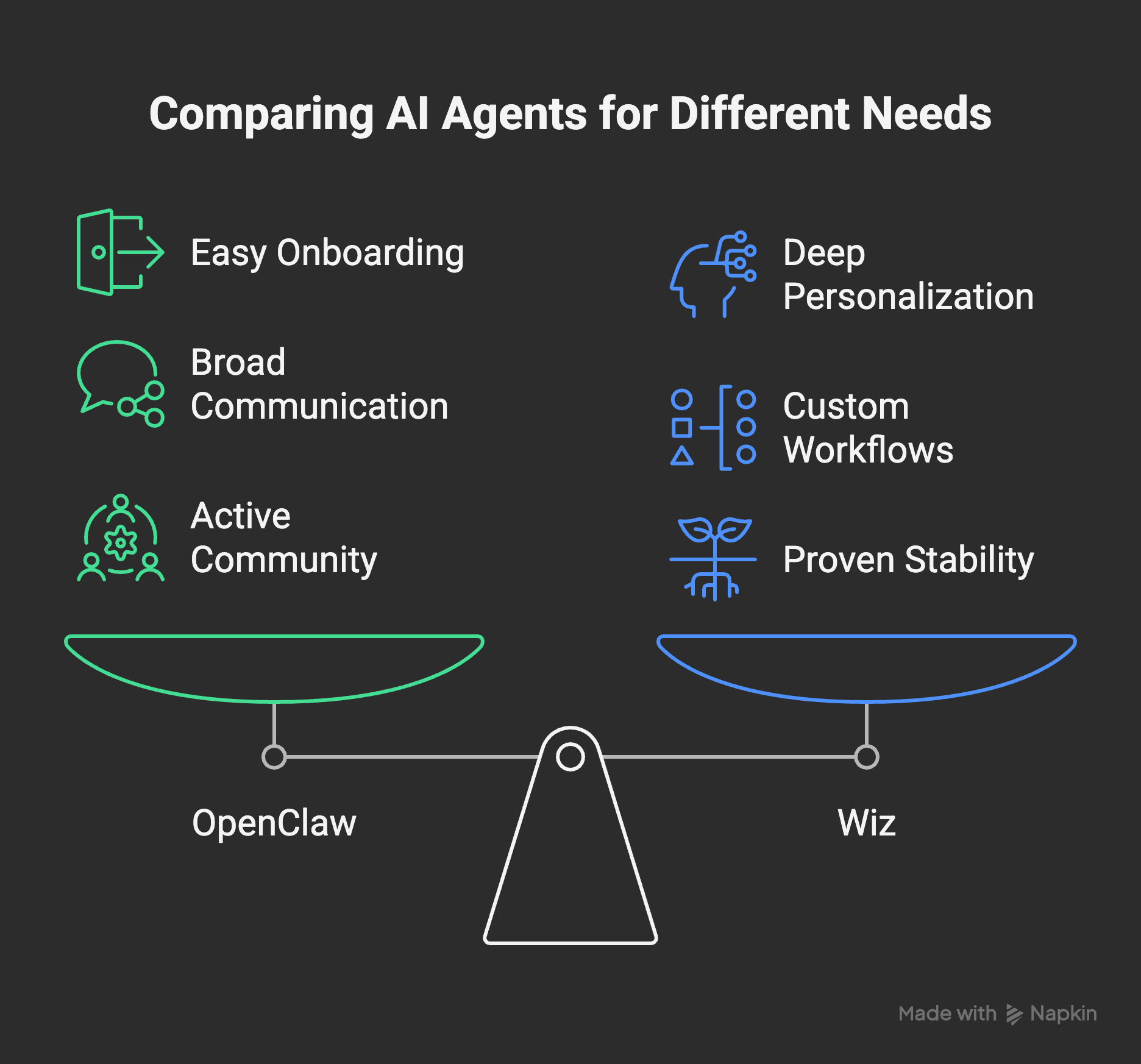
Where OpenClaw is clearly better:
Onboarding and setup. The Mac companion app (Codex.app), the installation wizard, the menu bar controls. For someone who isn’t technical, OpenClaw is dramatically easier to get running. No contest.
Communication channels. It supports 20+ platforms out of the box. WhatsApp, Telegram, Slack, Signal, you name it. I set up WhatsApp in minutes. For Wiz, each channel was built from scratch, and I have three (CLI, Discord, iMessage).
Community and ecosystem. 52 available skills. Active community. Regular updates. If something breaks, someone else has probably fixed it already.
Where Wiz holds its own (or wins):
Stability. This surprised me. My custom automation, the nightshift system, the self-healing monitors, the error registry with automatic recovery. These have been battle-tested over months of daily use. My agent has been running overnight autonomously since late 2025. That kind of stability doesn’t come from features. It comes from fixing things that broke at 3 AM, over and over, until they stopped breaking.
Personalization depth. Wiz knows who I am. Not just my preferences. My ADHD patterns, my energy levels, my communication style, my relationships, my goals. Months of accumulated context that makes interactions feel fundamentally different from talking to a fresh agent.
Custom workflows. The experiment pipeline, the content creation system, the job search automation, the task management through WizBoard. All built exactly for how I work. No compromises to fit a generic framework.
The takeaway wasn’t “Wiz is better” or “OpenClaw is better.” It’s that they’re different tools optimized for different users. OpenClaw is better for getting started. A custom agent is better for going deep. I’m setting them up to work together now, as a team, each handling what it’s best at.
If you’re starting from zero and want an AI agent running today, use OpenClaw. If you’ve been building for months and your agent fits you like a glove, don’t throw that away because a shiny open-source project has more GitHub stars.
What I’d Do Differently
After three days and more than a few late nights, here’s what I’d change if I did this again:
Set up BetterDisplay first. Before migrating anything. The headless display issue cascades into so many other failures. Get the virtual display working, verify screencapture works, then proceed.
Audit every skill and tool dependency before migrating. Not just the main repo. Every Claude Code skill, every helper script, every CLI tool. Make a checklist. Install everything on the new machine before you start moving automation.
Migrate one LaunchAgent at a time. I batch-moved several and when something broke, debugging was harder. One at a time, verify it works, move to the next.
Set up Tailscale immediately. Before anything else. You’ll need remote access while you’re still configuring, and being stuck on the local network limits when you can work on the setup.
Keep the old machine running in parallel for a week. I was aggressive about turning off MacBook automation. Give yourself overlap time. Run both, compare, make sure nothing falls through the cracks.
Is It Worth It?
Three days of migration. A few hundred dollars for the Mac Mini. Several late-night debugging sessions.
Absolutely worth it.
My laptop is my laptop again. My agent runs 24/7 without depending on whether I’m home, whether my lid is open, whether I’m using too much RAM. It has more permissions, more autonomy, more stability. iMessage added a communication channel that feels genuinely natural. The virtual display solved the last headless limitation. And the whole thing draws less power than a light bulb.
If you’re running an AI agent on your personal computer and you’ve felt that friction, the friction of shared resources, the anxiety of closing your laptop, the compromise of limited permissions, a dedicated machine fixes all of it. Mac Mini is the obvious choice for anyone in the Apple ecosystem.
The migration isn’t trivial. But it’s a weekend project, not a month-long ordeal. And once it’s done, you don’t think about it again.
Your agent just runs. Always on. Always ready. Even when you’re asleep.
I write about building AI agents, automation, and what actually works (and doesn’t) when you try to make AI useful in real life. If you’re interested in this kind of thing, I write about it every week on Digital Thoughts.
If you want to build your own overnight AI agent, I documented the entire setup in the Night Shift Playbook. It covers the prompting structure, file layout, monitoring, and everything that makes autonomous execution actually work.
"Three days of migration. A few hundred dollars for the Mac Mini. Several late-night debugging sessions.
Absolutely worth it."
Hell yeah! this was an awesome read. Really glad to hear about your experience here.
Dev versus prod hell in a nutshell - nice read.
I have a Mac Studio and can run local models. I wouldn't get super excited about them - yes, they are "Free" but you pay for that with quality. You need very specialized use cases to make the "Free" worth it. You don't have to guess though - you can test them on OpenRouter.ai and compare against frontier models. If the math works out that the local models you can run on a 96GB or 256GB Mac Studio (the 512GB is no longer available) are cheaper than frontier, easy decision.
For me, it definitely wasn't.